Launching MC and AWS Resources with a CloudFormation Template
Launch Vertica Management Console (MC) and its associated AWS resources using CloudFormation templates (CFTs) that are available through the AWS Marketplace. For an overview of available CFTs, see CloudFormation Template (CFT) Overview.
Use MC to deploy Vertica cluster instances and create an Eon Mode or Enterprise Mode database. You can also use MC to manage and monitor your databases.
Prerequisites
- AWS account with permissions to create a VPC, subnet, security group, EC2 instances, and IAM roles (For more information about AWS accounts, see the AWS documentation)
- Amazon key pair for SSH access to an EC2 instance (See the AWS documentation for key pairs)
Launch
Starting in the AWS Marketplace, you launch the provisioning instance from which you can install Vertica.
- Log in to the AWS Marketplace with an AWS account (see the Prerequisites section above).
- Search for "Vertica" in the AWS Marketplace and select a Vertica CFT. Each CFT leads you to a product overview page, with pricing estimates. (Also see CloudFormation Template (CFT) Overview for an overview of available templates and products).
- Click Continue to Subscribe.
- On the next page, select your launch settings based on your requirements for deployment.
- If you have not agreed to Vertica EULA terms on the AWS Marketplace before, click Accept Software Terms to subscribe.
- Click Launch with CloudFormation Console. The CloudFormation Console opens.
- The CloudFormation Console automatically supplies the URL in the Specify an Amazon S3 template URL field. Click Next.
- Follow the CloudFormation workflow and enter the parameters (collectively called a stack). Important: Take note of the username and password you set for Management Console during this step. You cannot recover or reset these credentials after you create the stack.
-
After confirming the details you have provided for your new stack, click Create. The AWS console brings you to the Stacks page, where you can view the progress of the creation process. The process takes several minutes.
-
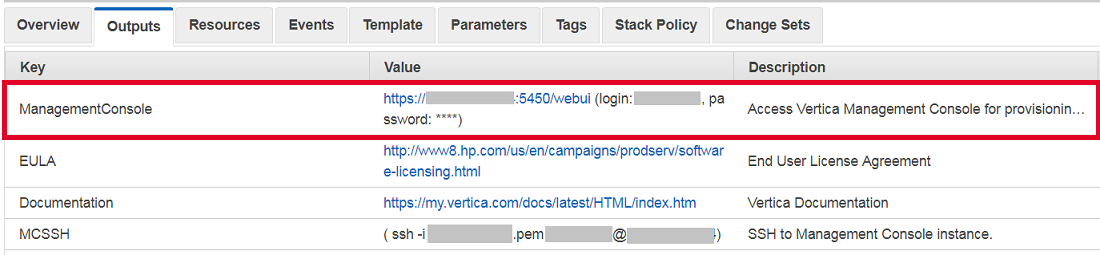
The Outputs tab displays information about accessing your environment after the process completes.
Access Management Console
You will use Management Console to provision a Vertica cluster and database on the AWS resources you just launched.
- On the CloudFormation Stacks page, select your new stack and view the Outputs tab. This tab provides information about accessing your environment, as well as documentation and licensing resources.
- Click the Access Management Console URL. This link takes you to the MC login page.
- To log in, enter the MC username and password that you created using the CloudFormation Console.
After login, MC displays the home page, with options to provision a new cluster or database or import existing ones. If you chose a CFT that also creates a database, your new database is also displayed on the home page.
This page also provides a Resources section with links to online training, blogs, community, and help resources.
Next Steps
You have successfully launched Management Console on AWS resources.
If you have not yet provisioned a Vertica cluster and database, follow the steps in Provision a New Vertica Cluster and Database on AWS Resources in the Using Management Console guide.
For information about managing your cluster using MC, see Managing Database Clusters.
See the Administrator's Guide for information about general use and maintenance of a Vertica database.
