Reviving an Eon Mode Database in MC
An Eon Mode database keeps an up-to-date version of its data and metadata in its communal storage location. After a cluster hosting an Eon Mode database is stopped, this data and metadata continue to reside in communal storage. When you revive the database later, Vertica will use the data in this location to restore the database in the same state on a newly provisioned cluster.
The Provision and Revive wizard is available through Management Console (MC) if you installed Vertica using a CloudFormation template.
If the version of MC you use to revive is higher than that of the database, reviving also automatically upgrades the Eon Mode database's Vertica version. You can revive an Eon Mode database if it is version 9.1.0 or higher.
See Shutting Down and Reviving An Eon Mode Database for how to revive a database using admintools.
Note: If you need to revive your database on a previously existing cluster, you must revive it using admintools, not MC. For example, use admintools if you stopped a cluster whose hosts use instance storage where data is not persistently stored, and plan to bring back the database on the same cluster.
Prerequisites
- Communal storage location (an AWS S3 bucket) of the stopped Eon Mode database you plan to revive (For how to stop or terminate a cluster using MC, see Viewing and Managing Your Cluster.)
- Username and password of the Eon Mode database you plan to revive
-
AWS account with permissions to create a VPC, subnet, security group, instances, and IAM roles
- Amazon key pair for SSH access to an instance
Revive the Database
In this task, you will use a single wizard in MC to provision a new cluster and revive a database onto it from a browser. For the new cluster, MC will automatically provision the same number of instances used by the database when it was last shut down.
Caution: Using the same communal storage location for multiple running databases causes data corruption. To avoid corruption, never use the revive functionality to simultaneously run the same Eon Mode database on different clusters.
- From the MC home page, click Provision and Revive anEon Mode Database. The Provision and Revive an Eon Mode Database wizard opens.
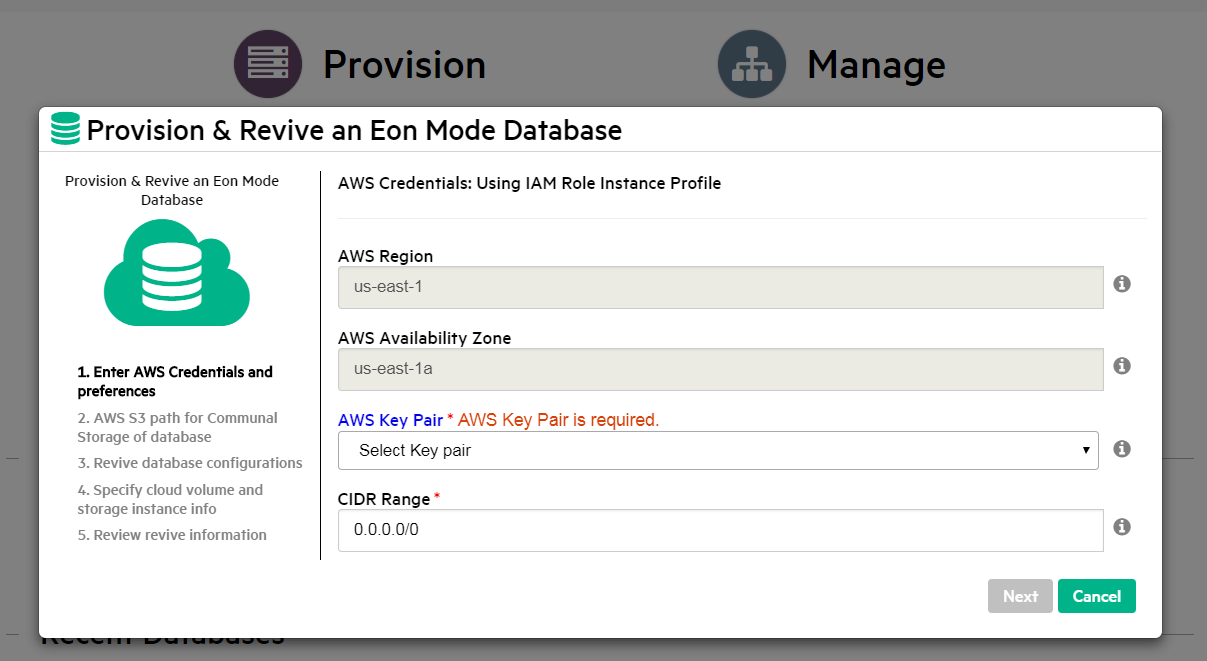
- Enter your AWS credentials and cluster preferences. Your cluster must be in the same region as your communal storage location's AWS S3 bucket. (To revive the cluster in a new region, you must create a new S3 bucket in the new region, copy the previous S3 bucket's contents into it, and provide the new S3 bucket URL in Step 3.)
- Enter the AWS S3 URL of the database you will revive. When you enter an S3 bucket location, MC discovers all known Eon Mode databases stored there, and you can select the correct database to revive.
- Provide the database administrator credentials for the database you are reviving. These credentials are the same as the ones used by the database in the previous cluster.
- Choose instance types for the cluster, and (optionally) tag them. MC will provision the same number of instances used by the database when it was last shut down.
- Review your choices, accept the license agreement, and click Create to revive the database on a new cluster. If the version of MC you use to revive is higher than that of the database, MC will first notify you that it is about to automatically upgrade the database. After starting the revive process, the wizard will display progress. After a successful revive, the database will start automatically.
- When the revive process is complete, MC displays a success message. Click Get Started to navigate to the Fast Tasks page.
